Oracle Database Setup: Linux
This is step by step guide to set up and start working with Oracle Database on Linux
Step 1: Install Docker
For Fedora/RHEL distros:
sudo yum install docker.ioFor Ubuntu/debian distros
sudo apt install docker.ioStep 2: Now pull the docker image of the Oracle database container
sudo docker pull container-registry.oracle.com/database/express:latestStep 3: Now run the Oracle database docker container
sudo docker run -d --name oracle-db -p 1521:1521 container-registry.oracle.com/database/express:21.3.0-xe
Now let's see if our docker container is up and working!
Step 4: sudo docker ps | grep health
you should be able to see the output like this

or

Step 5: A little tweaking in the configuration of the container is needed to make it ready to connect to the SQL developer tool
- Run the following commands to add a line to setup connection between the container and the SQL developer tool
sudo docker ps
sudo docker exec -it [CONTAINER ID] bashReplace "[CONTAINER ID]" with the first 4 digits of the container ID
echo "DISABLE_OOB=ON" >> /opt/oracle/oradata/dbconfig/XE/sqlnet.ora
- Now to set the password of the oracle database
sudo docker exec [CONTAINER ID] ./setPassword.sh [new password]

We have completed the DBMS installation.
Let's install SQL developer tools
Step 6: Download the .rpm file irrespective of the distro
Now install the packages by following the below steps
For Debian/Ubuntu distros
sudo apt update
sudo apt install alien
alien --to-deb [file_name.rpm]
sudo apt install ./[file_name.deb]
For Fedora/RHEL
sudo rpm -i [file_name.rpm]
We have reached the installation of the Oracle database and SQL Developer tools!
The final step.
Tighten up your sleeves, this is the part we will face turbulence.
- Open the SQL developer tool GUI
- Set the sid to 'xe'
enter username as 'SYS'
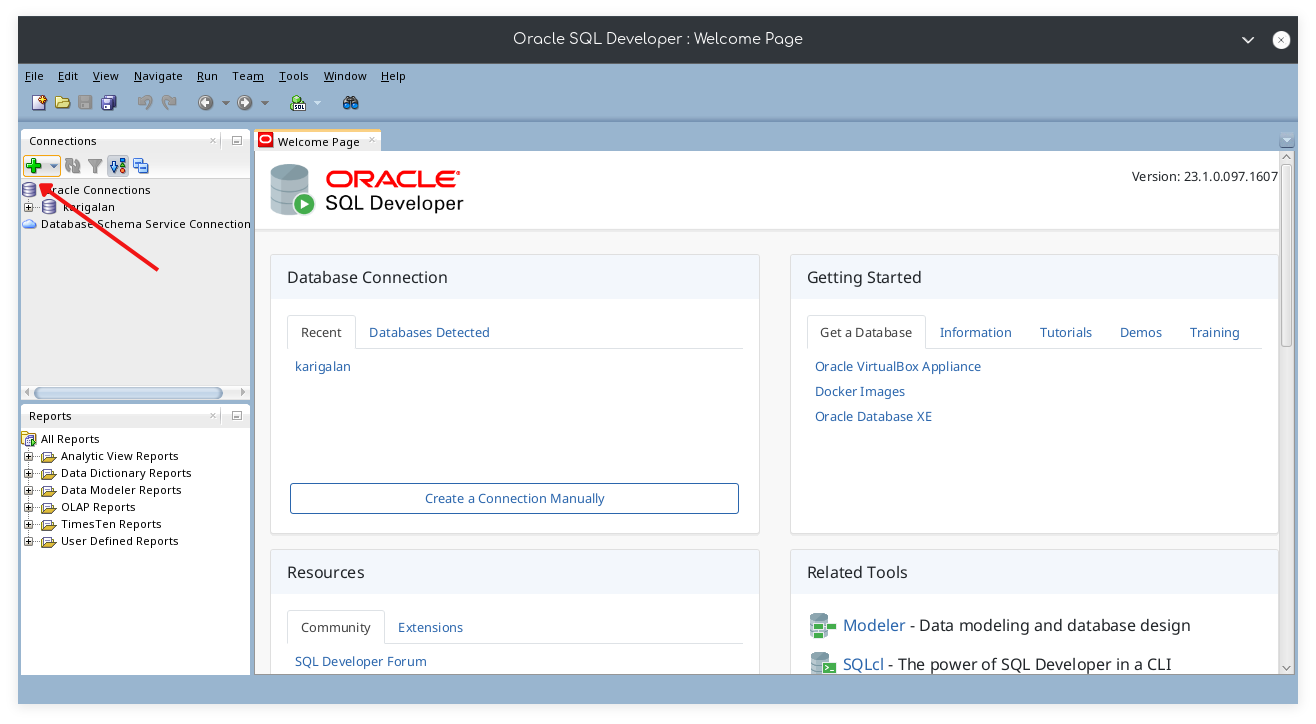
And you should be able to work in worksheet!
Everytime you boot up your machine run the Database container
sudo docker run -d --name oracle-db -p 1521:1521 [image name]